
Two-factor authentication (2FA)
With two-factor authentication (2FA), you increase the security of your login. In addition to your user name and password, infra-struktur then also asks for a changing key before you are given access. You generate this changing key with your smartphone and enter it as an additional step when logging in.
Activation by the user
Every infra-struktur user can activate and deactivate 2FA themselves. You will find the setting in the menu under “Einstellungen -> Persönliche Einstellungen -> Sicherheitseinstellungen” (Settings -> Personal settings -> Security settings).
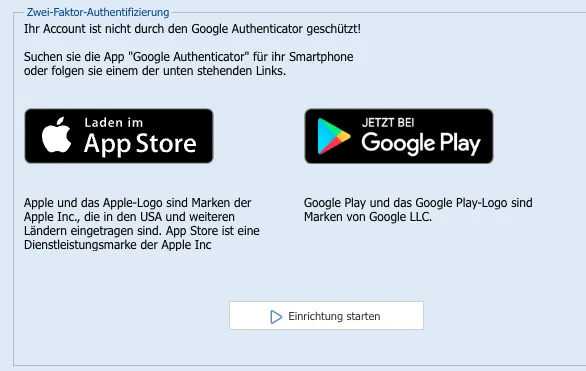
As the key will later be generated with your smartphone, you will already find the links to the app for Apple and Google devices here.
- Click “Einrichtung starten” (Start setup) to begin the process.
- First enter your infra-struktur password. This way, not everyone who sits at your computer can change your 2FA.
- A QR code is now generated for your infra-struktur account. With it, you can set up the Google Authenticator app on your smartphone quickly and easily.
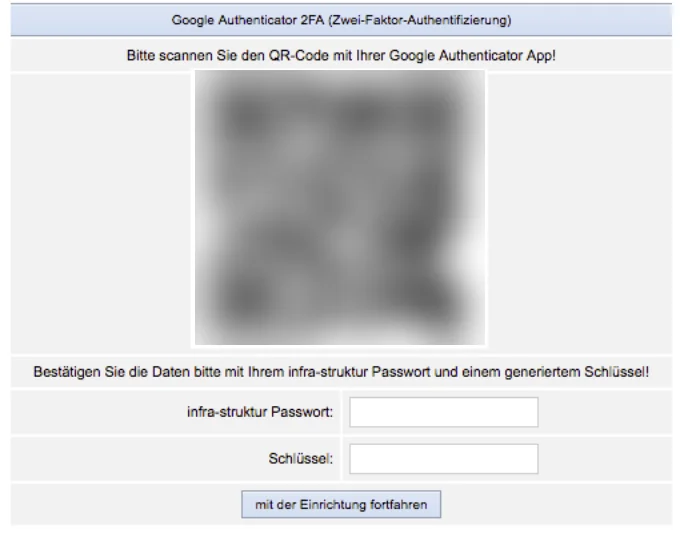
Set up the app
In the next step, scan the QR code with your smartphone. To do this, tap the + at the top right in the Google Authenticator app and scan the QR code. Done, the app is set up.
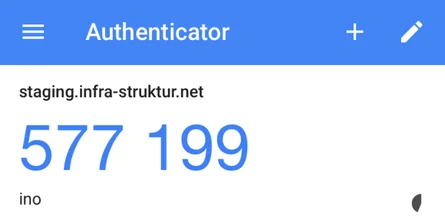
The app now generates a 6-digit number every 30 seconds. In future, you will be asked for it in addition to your user name and password.
Important: The 6-digit number can only be used once and changes every 30 seconds!
Complete setup
Now enter your infra-struktur password and the current 6-digit number (“Schlüssel” (key)) from the app in infra-struktur and click “mit der Einrichtung fortfahren” (continue with setup). 2FA is now fully set up.
Switching 2FA off again
If you want to switch 2FA off again, you can also do this in your personal settings in infra-struktur, using the button “Die Zwei-Faktor-Authentifizierung deaktivieren” (Deactivate two-factor authentication).
Use
If 2FA is activated, by default a new intermediate page follows the login page on which you enter your user name and password. There you enter the key from the smartphone app.
- Take your smartphone and open the Google Authenticator app.
- Enter the 6-digit code.
- Click “Prüfen” (Check). The key is checked and, if successful, the infra-struktur home page loads.
Save key entry for 7 days
So that you do not have to enter the changing key every time you log in, there is the option “Schlüsseleingabe für 7 Tage speichern” (Save key entry for 7 days). If you tick the box, the login page remembers the valid key check for this computer and this browser. The next time you log in on this computer, you will not be asked again.
The 7 days refer to inactivity: after each successful login, the time is reset to 7 days. So the key prompt only appears again if you have not been on this computer for 7 days.