
The infraMailer
The infraMailer is an add-on module for infra-struktur that lets you send local files directly with the infra-struktur mail program.
You need to install the program required for this, an .exe file that you receive from NETZkultur, once.
Click the link provided by NETZkultur.
When you open this link, you may see a warning message that generally warns against downloading .exe files:
“In accordance with your company’s internet access policy, downloading this file type is not recommended. The download is at the user’s discretion.”
In this case, however, ignore the warning and click “Weiter” (Next). Download the file and then open it.
When you open the downloaded .exe file, you will be “warned” again. In general, quite rightly as far as handling .exe files is concerned, but in this case click “Weitere Informationen” (More info) and then “Trotzdem ausführen” (Run anyway).
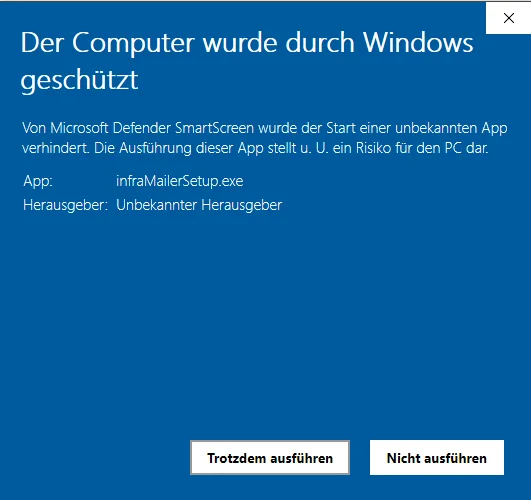
Confirm all notices and messages, run the file and click “Weiter” (Next).
First, the program creates a target directory into which the application is installed.
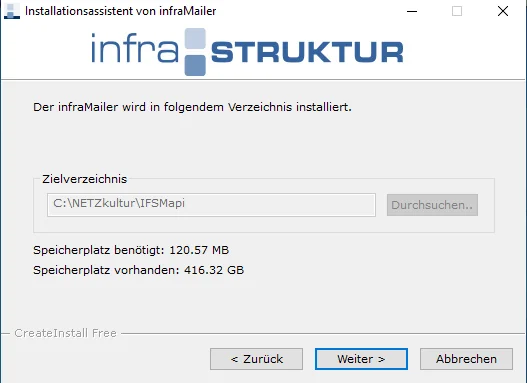
Confirm the directory with “Weiter” (Next).
Then the actual program is installed. Wait for the various steps and let it “run through”.
At the end, please take note of the information from the installation wizard:
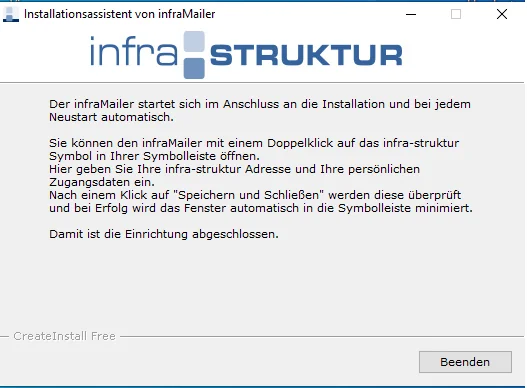
And then click “Beenden” (Finish).
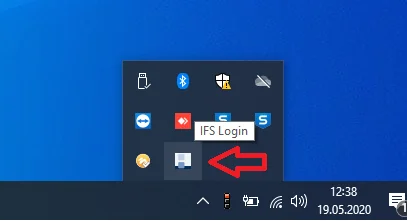
Then start the infraMailer by double-clicking the infra-struktur icon at the bottom right in the notification area of the Windows taskbar:
In the small window that then appears, first enter the address of your infra-struktur instance where it says demo.infra-struktur.eu, below that your infra-struktur user name, which you also use to log in to the system, and your infra-struktur password.
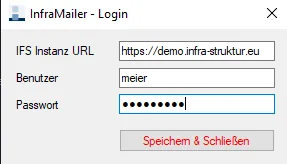
Confirm with “Speichern & Schließen” (Save & close).
A verification then runs and, if the data you entered is correct, this is confirmed by the message “Erfolgreich!” (Successful!).
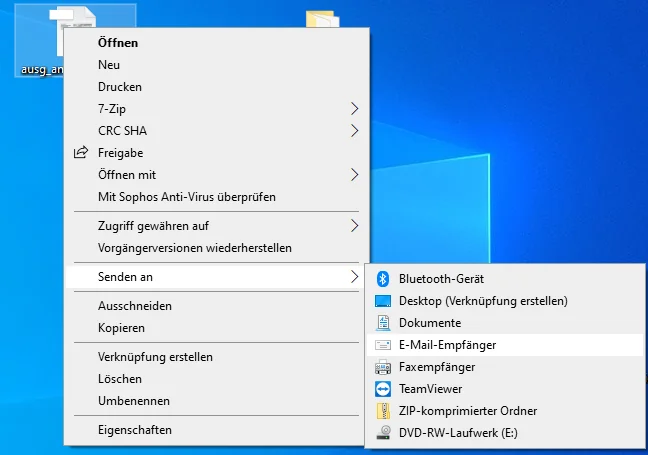
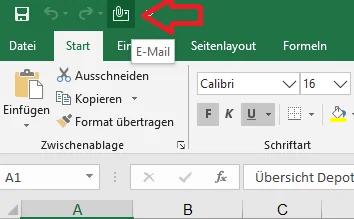
You can now use a MAPI interface to send, for example, an Office document via the infra-struktur mail compose window, or pass a file to infra-struktur via the right mouse button and “Senden an” (Send to) - “E-Mailempfänger” (Mail recipient).
Via the right mouse button on the document icon:
Directly from within a document, here using Excel as an example:
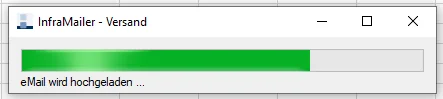
In both cases, an upload routine opens which attaches the document to a mail compose window (this can take a while, depending on the document size).
You can now edit the open mail compose window and write your e-mail.
If you are not logged in to your infra-struktur during sending, the e-mail and its attachment are saved as a draft, and you can open it to send it when you are back in the system.