
Notifications with IFTTT
The free internet service http://www.ifttt.com (opens in a new tab) gives us many ways of linking external services (push notification, SMS and the like) to infra-struktur. So we wanted to be able to report everything that happens in infra-struktur to this service with the output channel IFTTT Webhook (that is its name).
Set up a user account
Anyone can set up an IFTTT account free of charge. So every infra-struktur user who wants to send information to their smartphone needs their own IFTTT account.
https://ifttt.com/join (opens in a new tab)
Here you can create an account or sign in with your Google or Facebook details.
https://ifttt.com/login (opens in a new tab)

New applet
So that infra-struktur can communicate with IFTTT, and IFTTT with your smartphone, for example, you need to create so-called applets.

As shown, applets work according to the motto:
If this happens, then do that!
If this
This part is always the same: you click the blue +this and choose Webhook as the service. So the webhook is the calling side of infra-struktur. infra-struktur signals IFTTT via a webhook. A webhook is an internet address following the pattern https://maker.ifttt.com/use/abcdefghijklmnopqrst. This address is later entered in infra-struktur and says: if, for example, a call comes in, then call up the address (webhook).
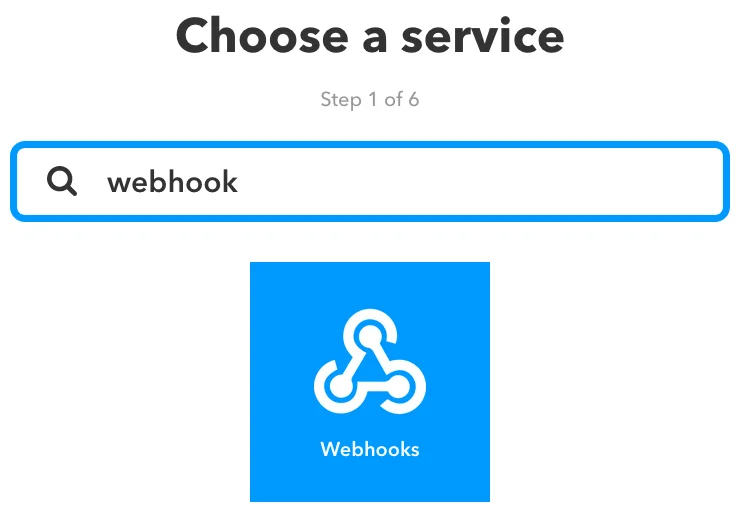
Step 1: Choose a service
Search for Webhook here and click it.
Step 2: Choose a Trigger
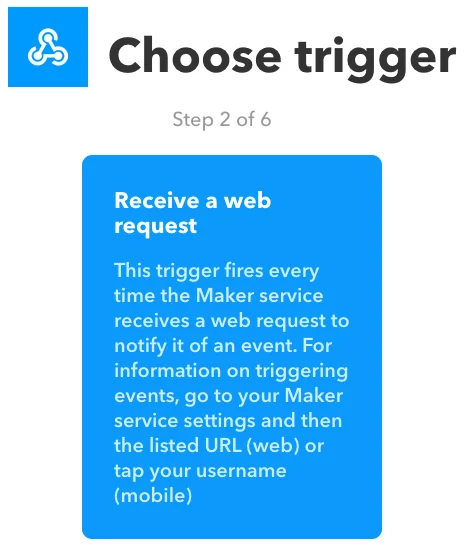
Simply click Receive a web request.
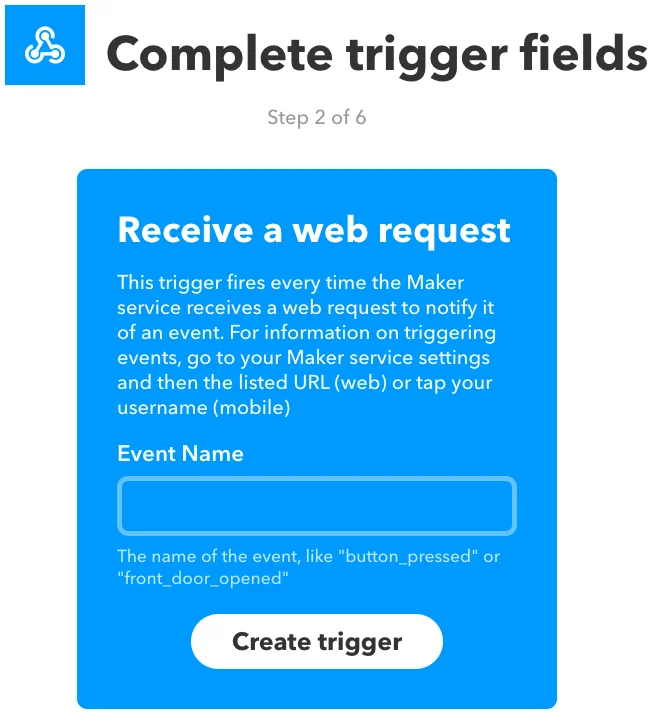
Enter an event name here (we will need it later) and click create trigger.
The input is now ready; next comes what should happen.
Then That

Step 3: Choose action service
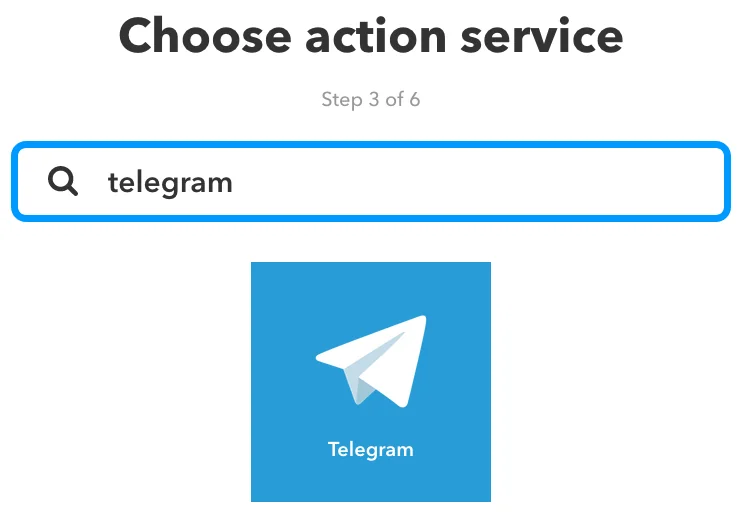
Here you now define various actions that should happen when infra-struktur sends a signal.
Actions
The following actions are integrated in IFTTT as standard:
Telegram
Once you have connected your IFTTT account to Telegram, you can send various new items and changes within infra-struktur as a push notification to Telegram and thus to your smartphone.
http://telegram.org (opens in a new tab)
Slack
Slack is an exciting alternative as a push service. Unlike Telegram, where the idea is rather to send to one person, Slack also sends the push notifications to so-called channels. Several people can subscribe to these channels. You can also start a discussion directly in the channel.
So it makes more sense to have a notification about calls outside working hours sent to a Slack channel; then several employees can discuss straight away who will take care of it.
SMS
The classic SMS, as our ancestors knew it, can also be used as an output for IFTTT. For this, you use the service Clicksend, which handles the technical side. So simply set up an account at https://www.clicksend.com/de/ (opens in a new tab) and connect IFTTT to it.
As the manufacturer does not provide an official API (programming interface) for the Whatsapp service, we cannot guarantee proper operation. There is no guarantee that every message will arrive correctly. That is why IFTTT does not support Whatsapp.