
RTF print management
RTF print management lets you create templates that you can open via the “Drucken” (Print) tab of the records. These templates are then filled with the individual information from the records.
For a letter, for example, you can take the first name, surname, address and salutation, if they are contained in the record, straight into a template and open and edit it with Word or Open Office.
To use such a template, please create an RTF file with Word or another word processing program, for example:
anschreiben.rtf
Feel free to use your letterhead paper with your (graphically designed) letterhead and insert placeholders formatted with percent signs where information from the record is to be inserted, roughly like this:
%Anrede% %Vorname% %Name% %Strasse% %PLZ% %Ort%
%Briefanrede%,
The name between the percent signs must be exactly the same as the field in the record. Important: umlauts and special characters such as ß cannot be processed in the RTF document. So the field must be called “Strasse”, and in the document it is accordingly %Strasse%.
So if our record looks like this...
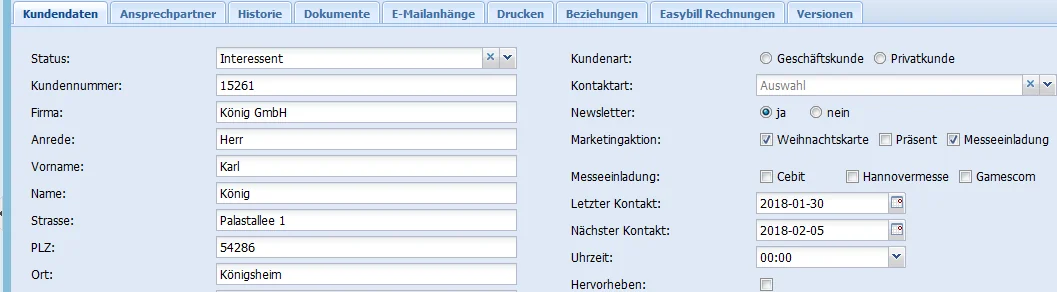
...our RTF document must be structured like this:
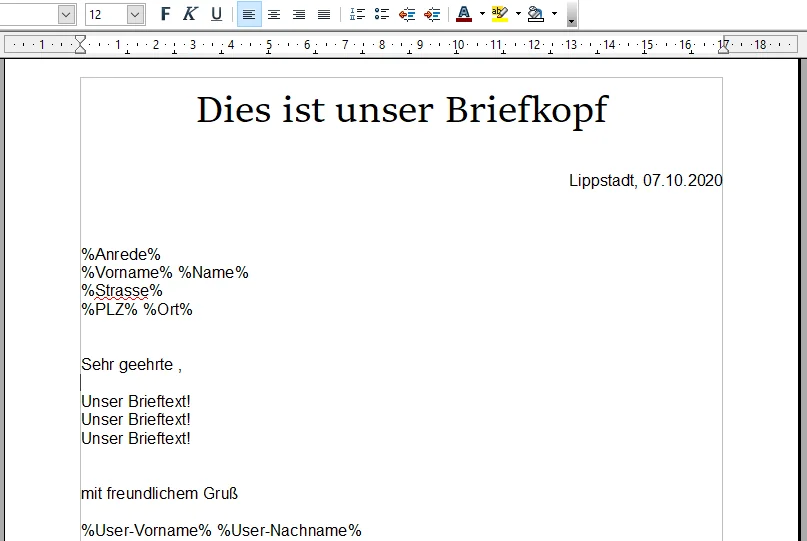
As you can see, the name of the user who opens the template can also be inserted into the document automatically in the way shown there.
But you can insert not only your input fields and your name into the document, but also a whole range of other information and switches from the record:
For the current user, this is the following information:
The infra-struktur user ID: %User-Id%
The user initials: %User-Kuerzel%
The user name: %User-Anmeldename%
You can also take single-selection fields from the records into the document:
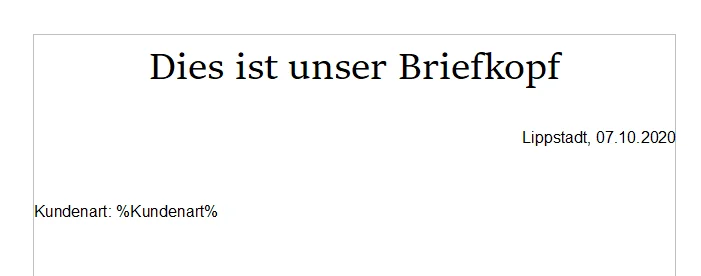
For example, if you want to output the switch “Kundenart” (customer type) as well...

... simply put the field name in percent signs in the document: %Kundenart%. The selected value is then taken over, so in the document it should look like this:
Multiple-selection fields take a little more effort:

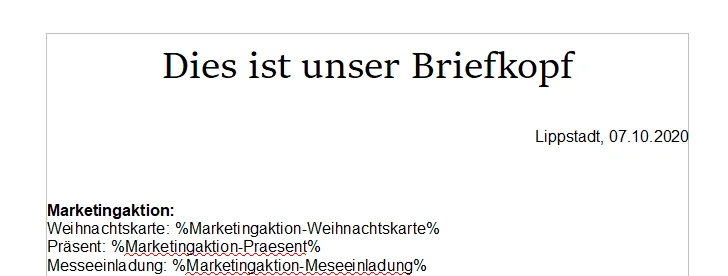
For example, if you want to output the values you have defined with a multiple-selection field, such as a marketing campaign used here, you have to translate the complete switch, including the clickable values, for the document, and do so for every selectable value:
%Feldname-Feldwert% (field name, field value)
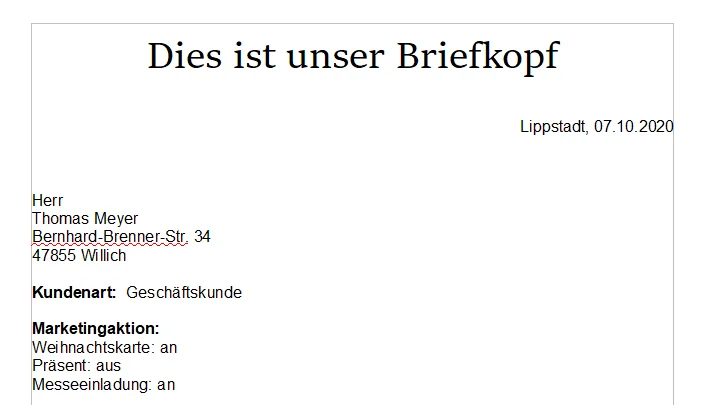
In our example the document would then look like this:
In the final output of the document it would then look like this:
You can take over the archive field and the note field, i.e. the two multi-line free text fields in your records, with the placeholders %Archiv% and %Hinweis%.
Contact person fields
Besides master data fields, you can also take information about the various contact persons into the document.
Simply put AP- in front of the name of the field you want in the placeholder.
So: %AP-Name% %AP-Telefon% %AP-E-Mail%
When you open the template via the “Drucken” (Print) tab in the record, you can choose each time whether to take data from the master form or data of a contact person.
Important note and tips
The RTF templates are very “sensitive” when it comes to the “cleanliness” of the placeholders defined with percent signs. The system “takes offence” at “unclean” formatting, which can easily occur, for example, when you work with copy and paste.
Our tip: for this reason, open the finished RTF file with a text editor, for example the standard Windows editor (right mouse button, “Öffnen mit” (Open with)).
Search the cryptic text for “%” with Ctrl F.
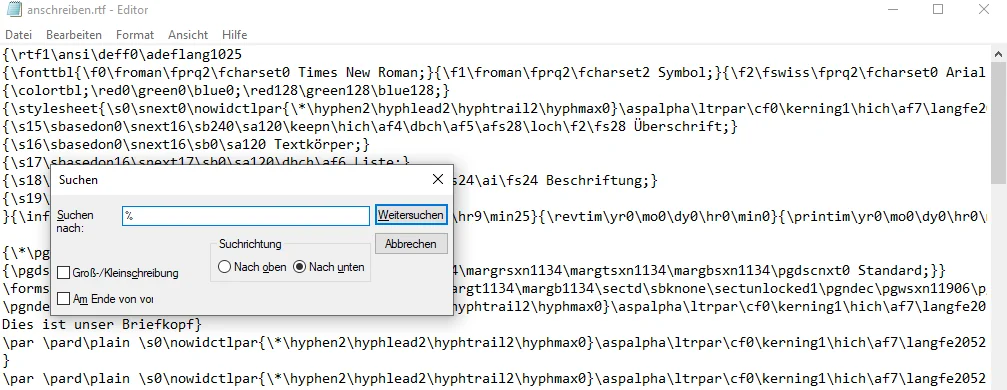
Now the % placeholders are shown to you one after the other when you click “Weitersuchen” (Find next) - “Nach unten” (Down).
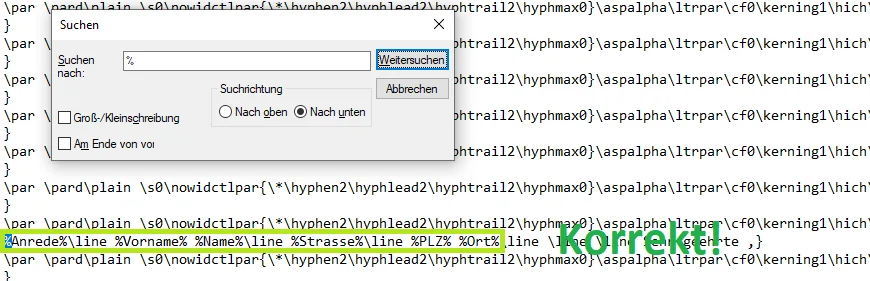
This shows you whether the placeholders really are cleanly in the text in the format %Platzhalter% or whether one or another has been “broken” by wrong formatting. Correctly, it looks like this:
Give the finished RTF template to your administrator, who can implement the file in your infra-struktur records.