Introduction guide: top bar
The so-called top bar is the blue bar at the top edge. On the left, you will find the infra-struktur logo and the “Neu” (New) button, in the middle the search field and on the right an hourglass, a cog and your profile picture. You open the modules themselves via the left menu bar.

Logo
Clicking the infra-struktur logo takes you straight to the home page. This is particularly handy if you have not set the tab alignment (see additional menu) to the top and want to get to the home page quickly.
Create
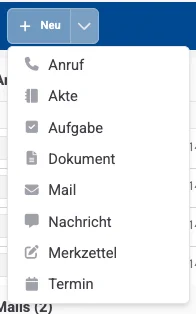
With the “Neu” (New) button, you can create various kinds of information directly. Use the arrow next to it to expand the selection: call, record, task, document, e-mail, message, note and appointment.
User status
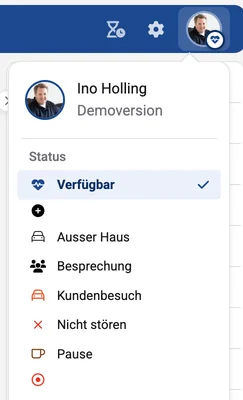
Clicking your profile picture on the far right of the top bar opens a menu in which you can change your status, which others can see in the user list, under “Status”. By default, you are set to “Verfügbar” (Available); other entries are, for example, “Ausser Haus” (Out of office), “Besprechung” (Meeting), “Kundenbesuch” (Customer visit), “Nicht stören” (Do not disturb) and “Pause” (Break). An administrator can extend the selection list as required. At the very bottom, you will find a “Benutzerdefinierter Status” (Custom status). Here you can enter any text as your status, e.g. “Homeoffice bis 11:00 Uhr” (Working from home until 11:00).
Home
The “Startseite” (Home) entry (house icon) in the left menu bar takes you straight to the home page to deal with your open activities.
Modules
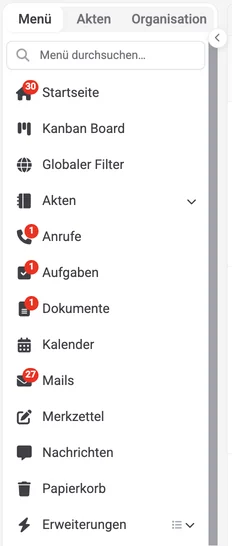
You open all main modules via the left menu bar (“Menü” (Menu) tab):
- Calls
- Tasks
- Documents
- Calendar
- Mails
- Notes
- Messages
The relevant module is either opened anew or an open one is activated. If the menu bar is collapsed, you only see the module icons there. With the right mouse button, you can also open modules several times or close them again.
Records
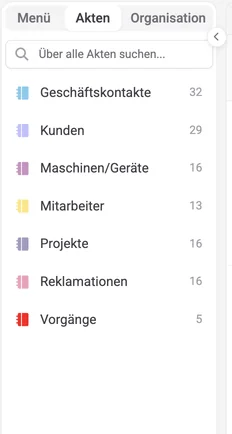
You open the table views of the various records (formerly data records) such as “Geschäftskontakte” (Business contacts), “Kunden” (Customers) or “Projekte” (Projects) in the “Akten” (Records) tab of the left menu bar. You can use the search field above to search across all records.
Notifications
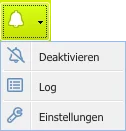
Here you can deactivate your alarms and notifications and make settings for how you want to be notified in which case, e.g. I want to be informed about a call by desktop notification.
Users online
For users who keep the menu on the left permanently collapsed, this is a quick way of viewing the list of logged-in users. By clicking a name, you can also write a message directly.

Search function
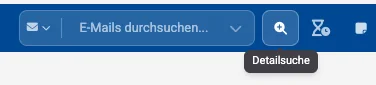
The search function lets you search the modules quickly. With the search term entered, the search jumps to the module specified in front of it and runs a search. You select the module on the left in the search field: on the home page, it shows the house icon (“Inbox durchsuchen…” (Search inbox…)), in the mails the envelope icon (“E-Mails durchsuchen…” (Search e-mails…)). In the mails, you will also find the “Detailsuche” (Detailed search) button to the right of the search field.
Note
For quick and simple notes, we provide a text box that saves entries permanently. Each user has their own note box. The information it contains deliberately cannot be shared.

Additional menu
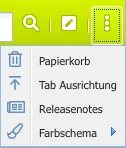
To keep the top bar deliberately clear, rarely used functions have been moved to the additional menu. These are typically functions that users use no more than once a day on average, e.g. choosing the colour scheme of the top bar.