
Introduction guide: the new drag & drop options in document management (DMS)
You can now simply drag files, e.g. from your file system, onto the whole of infra-struktur and drop them there to store documents and files in the infra-struktur document management system (DMS).
How does it work?
Select a file with a left click, e.g. in your Windows Explorer or the Mac Finder, and drag it onto the Firefox or Chrome window. A selection now appears automatically showing what you can do with the file:
- “Per Mail senden” (Send by e-mail)
- “Dokumentenablage xy” (Document storage xy)
- “Dropzone verstecken” (Hide drop zone)
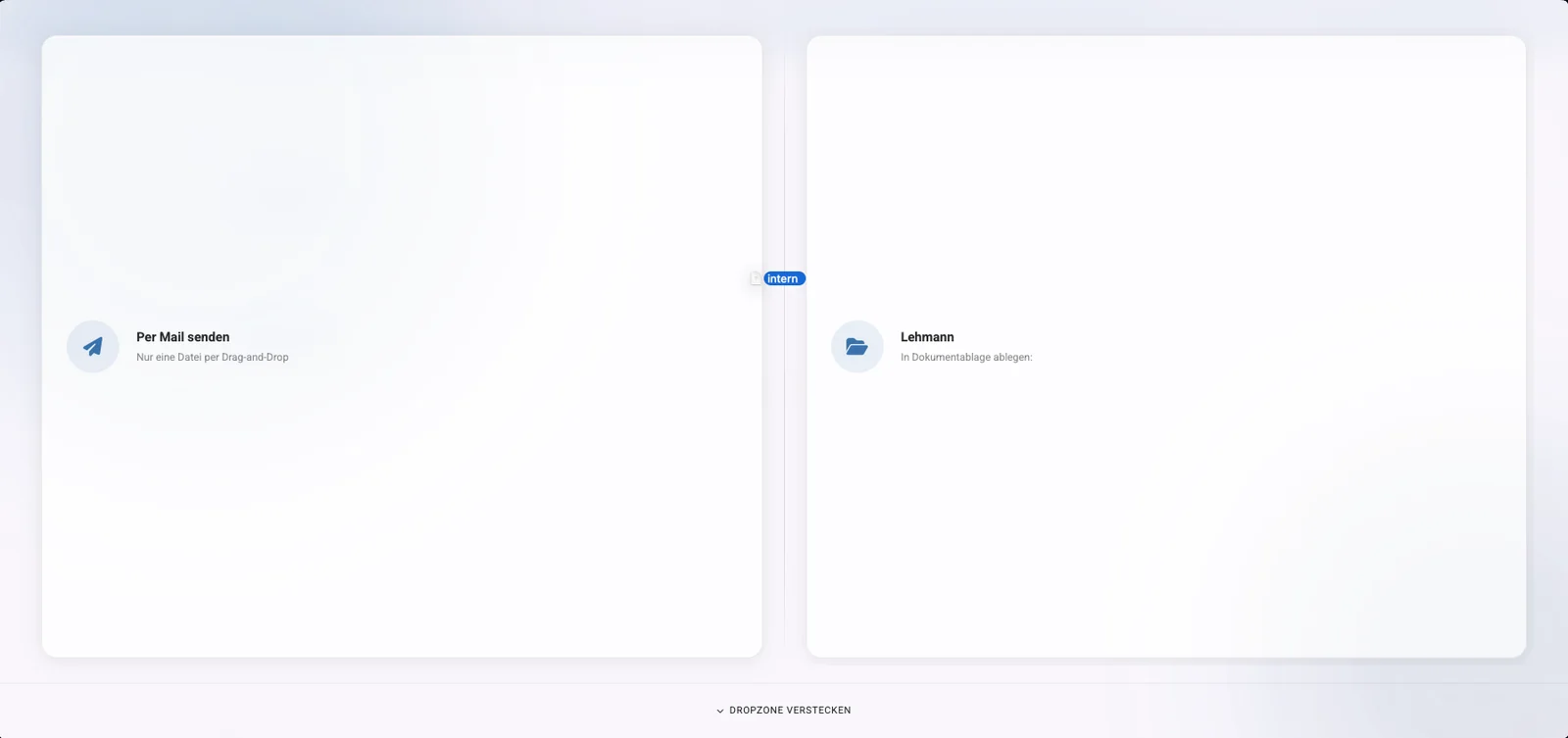
IMPORTANT: the mechanism works best if you do not swipe too hastily and act a little more gently. In general, we recommend dropping the files on the left menu bar or the top bar. In some cases the drop zone is not displayed correctly.
Document storage
Here you are offered all document storage areas you have access to. Depending on where you drop the file, it is uploaded to the right storage area in the background. As soon as the upload is complete, you will find the document with red status on your home page and in document management. As the upload takes place in the background, it may take a little while, depending on the file size, until the new document appears with its red status.
“Per Mail senden” (Send by e-mail)
In this area on the left you can drop a file to send it by e-mail. Technically, the file is also uploaded to the document storage (here your default storage). A window for writing an e-mail then opens automatically with your file attached directly.
Note: at present you can send a maximum of one file! If you want to send a whole batch of files by e-mail, it is best to open the compose window first and drop as many files as you like into it.
Hide drop zone
Because infra-struktur recognises, as it were, from the mouse movement whether you want to drag a file into the browser window, it is at exactly that moment that the drop zone is laid over infra-struktur. In practice this of course leads to the problem that you can no longer reach the other drag & drop areas within infra-struktur, such as the drag & drop area for versioning documents.
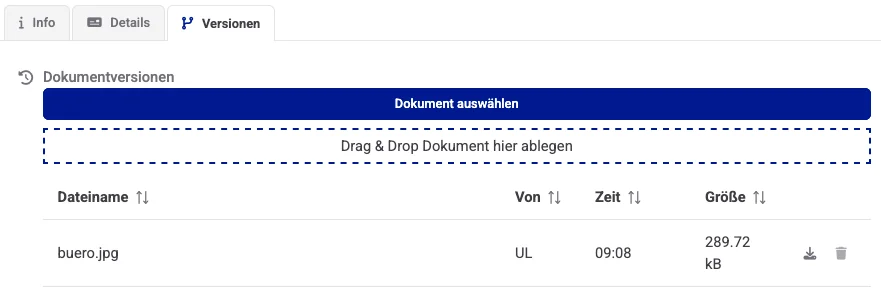
For example, if you want to add a new version to an existing document, you can click the existing document on the home page. The side panel opens. It has a separate drag & drop area for versioning. However, because the drop zone appears as soon as you drag a file onto the browser, you cannot reach this spot at all, since it is covered by the drop zone. The solution: drag the file onto the “Drop Zone verstecken” (Hide drop zone) area. The drop zone is now hidden and you can drop the file in the drag & drop area for versioning.