Introduction guide: task conversion
Task conversion means turning all kinds of activities into tasks. It is generally neither effective nor helpful to leave all open activities on the home page. See also the introduction guide: Ideas for a tidy home page.
Dimensions of tasks
Basically, tasks are very simple: for every e-mail, call or appointment, you can ask yourself two simple questions:
- What needs to be done?
- When does it need to be done?
This makes it very easy to create follow-ups for activities, which then do not have to glare red or yellow on your home page permanently.
Why should you convert activities into tasks?
- Try to get your home page empty by the evening to minimise your cognitive load. You always need to be able to mentally block out whatever is not urgent at the moment.
- Tasks for activities also show your colleagues exactly what you have planned in the history of a record. A yellow e-mail in the history gives no insight into when things will continue or what is to be done.
- The subject of an e-mail is someone else’s text, which you cannot influence. As long as this e-mail stays on your home page, you will be reminded of it again and again and have to think each time about what it was about. Create a task from the e-mail whose subject already says what it is about and what still needs to be done. Also describe the essence of the content in your own words. This way, you do not have to read and understand the e-mail again and again. That saves resources.
- Create tasks for things that will not be done today. Anything you can do immediately according to Getting Things Done does not need its own task.
- Choosing the date is a simple form of follow-up, because it makes the task disappear from your home page. You put the tasks in the archive and they come back up onto your to-do list by themselves at the right time. The follow-up principle also works with notes.
- People often find it hard to remember things. Most people’s strength lies in creative idea generation. If you have saved your tasks in a system that you trust and that you know will make them reappear at the right time, you can safely “forget” the tasks for the time being and no longer need to think about them. The system reminds you of them in good time. This frees up resources in your head, which you can use for creative idea generation again.
- As the system remembers from which activity you created a task, the original e-mail, call or document is always attached. You can simply mark this original element green. The task for it stays yellow.
Implementation in infra-struktur
Create a task
The easiest way to find the options and functions of each element is to right-click,
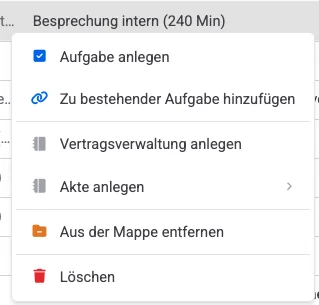
in the list view of activities, or in the panel.

For all activities, you can create a task from them:
- Calls
- Documents
- Appointments
- E-mails
- Notes
- Messages
So the ideas on the question above, “Why should you convert activities into tasks?”, can be applied to everything across the system.
Retrieving the task reference
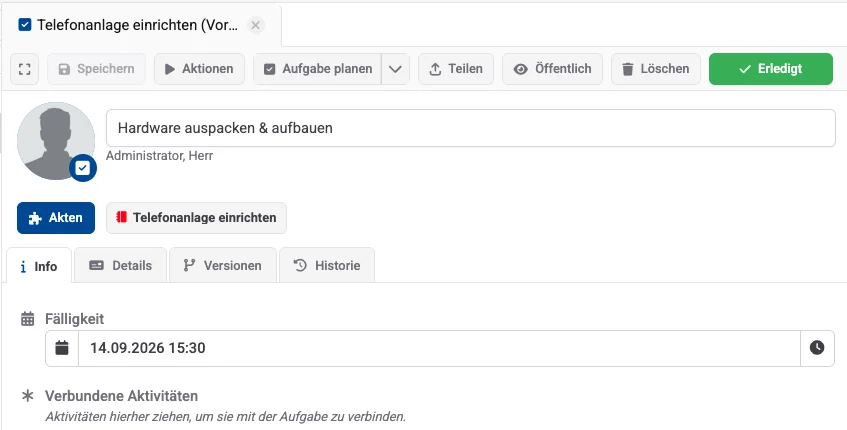
In the panel of a task, you will find the linked original activity in the “Info” tab under “Verbundene Aktivitäten” (Linked activities). You can drag further activities here to link them to the task. With one click, you jump directly to the original document, the e-mail, the call, etc.
What do you do if you want to convert several activities into one task?
To be able to work not only with tasks but also with complex structures, a further function was created: creating records from activities. The record becomes a “souped-up” task with extended functions. You can now use this original task more extensively, add documents, create further activities for it and much more. The task becomes a record with all the associated functions.
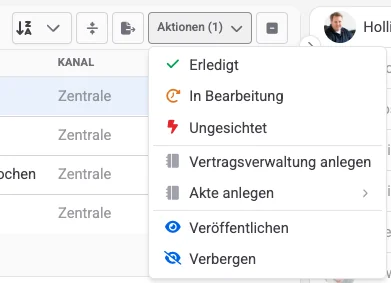
To do this, select the activities in the list and choose the entry “Akte anlegen” (Create record) in the “Aktionen” (Actions) menu, or directly one of the record types offered, e.g. “Vertragsverwaltung anlegen” (Create contract management).
For more information on working with processes, see the introduction guide on processes.