Introduction guide: Organisation menu
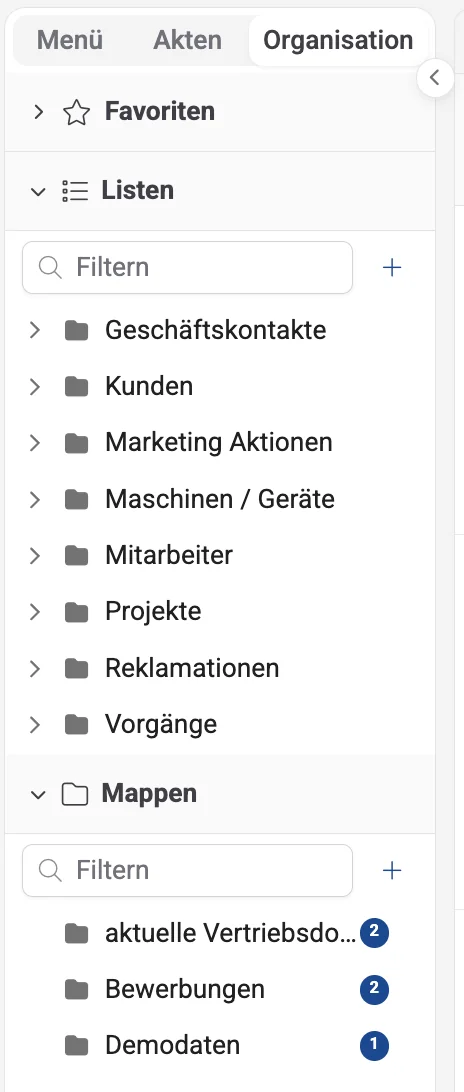
For you as a user, the organisation menu is one of the most important new features that come with the update. In future, the new tab in the menu offers
- favourites for data records
- binders – loose collections of activities
- lists for special module views
This new menu is based on the idea of filing items from the home page in a structured way on data records or in binders by drag and drop.
Important: Drag and drop only works with the new lists, i.e. with the new home page and the new call list. You can recognise the new, revised modules by the checkbox at the start of each row. With the checkbox you can, for example, select several e-mails directly and set them to the status green using the multi-actions. The classic modules, on the other hand, have no checkboxes.
This is why the organisation menu is only activated once the new modules are enabled. In some places, however, the classic modules can still be used in parallel.
Favourites for data records / records
In the Favoriten (Favourites) area you can put together your own list of data records. To do this, simply enter a search term in the search window. Select the right data record from the search results and add it to your favourites list with a click. You can change the order yourself by clicking the data records and simply moving them up or down by drag and drop. There is only one level for these favourites; sub-levels are not provided.
Example: You are currently working on the project “Mitarbeiterakquise Vertrieb” (recruiting sales staff). Simply save this project as a favourite so that you can access it quickly at any time without first having to search for it in the project form each time. You drag all incoming applications sent by e-mail onto the project in your favourites list with one click. This way you have all the documents right where they belong and close at hand.
This favourites list offers two important functions in particular:
- Opening data records
- Linking activities
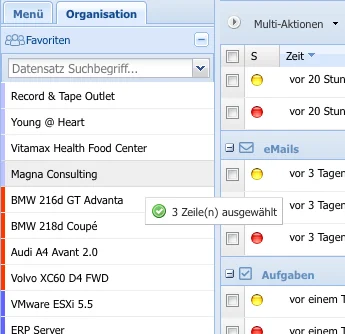
If, for example, you want to link several e-mails or calls from your home page to a data record in your favourites list, select the e-mails or calls with the checkbox, drag them onto the data record in your favourites list and simply drop them there. Because of the new link, the puzzle button of each selected e-mail or call naturally also changes after a few seconds, as a new data record link has been added.
Binders
Binders are free collections of activities.
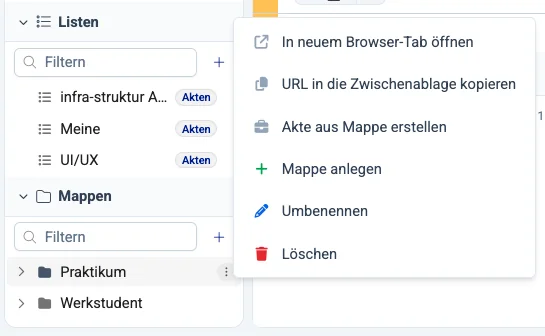
You can create new binders using the plus sign (Mappe anlegen, create binder) and, just as with the data record favourites, drop various activities here from the lists of the modules or the home page by drag and drop.
When you click a binder, a new tab opens. There you see exactly the activities that were added.

Examples: With the example above of recruiting sales staff, you could create different folders for pre-selecting the applications: reject straight away, check, interview.
Another binder might be used for preparing for the next meeting. Put all the documents, e-mails and appointments you need there.
Marketing uses it to collect the graphics and logos for the next brochure.
Binders are deliberately loose collections and can be created as you like. Binders can in turn contain (sub-)binders. You can move binders into other binders with the mouse by drag and drop. Activities can be in several binders at the same time without being duplicated. Using the three-dot menu next to a binder, you can delete, rename or create binders. There you can also open a binder in a new browser tab, copy its URL to the clipboard or create a record from the binder.
Note: Deleting binders is completely safe; you only delete a collection and its name. All the e-mails, documents or calls it contains are of course NOT deleted and remain available.
The table view of each binder shows all the activities that belong to it. To remove activities, right-click to open the context menu. There you will find “Aus der Mappe entfernen” (Remove from binder).
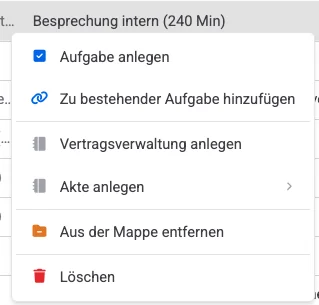
Note: Löschen (Delete) here really means deleting an activity, whereas Aus der Mappe entfernen (Remove from binder) only removes or detaches it from the binder.
Lists
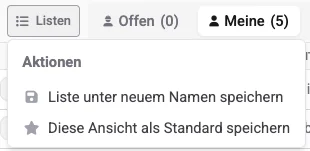
Lists are saved lists of activities. In the infra-struktur modules, the list view of calls, e-mails and so on has a Listen (Lists) button.

In the individual modules you can create a table of, for example, calls. You can modify this table view by setting the buttons Offen (Open), Meine (Mine) or Alle (All). You can also apply the Benutzerfilter (user filter) or define other time periods. The search can also be included. Once you have configured the view you want, e.g. with the buttons mentioned above, you can save it permanently using the Listen (Lists) button with Diese Ansicht als Standard speichern (Save this view as default). That way you do not need to set the switches and filters again every time you open the module. In addition to saving a default for a list of activities, you can also save any other switch combinations as a list (Liste unter neuem Namen speichern, save list under a new name).
The saved lists can also be found in the organisation menu, in an area of their own called Listen (Lists). Here you can create folders and manage the saved lists.
Examples:
- All calls of user xy
- All e-mails of the sales department
- All presentation appointments of the last 4 weeks
- All calls on the subject of invoice
- All incoming e-mails with a PDF attachment
- All documents of a department
- Your open tasks
- All e-mails from a particular e-mail sender
- All e-mails with the subject “Backup-Error”
Unlike binders, which are filled with items manually, lists always open in a new tab and query current lists of activities live. The list of results therefore tends to get longer and longer and also contains current information.
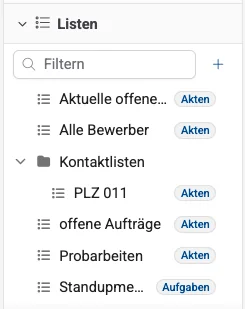
For this, the context menu of a list has the items Listenordner anlegen (Create list folder) and Löschen (Delete). This is how you bring structure to your lists. Deleting a list does not delete any activities, only the query on a module. A deleted list can therefore be created again at any time.
Lists can therefore also be understood as favourites of switch settings and selectors of the activity tables. At present, however, it is not possible to mix different activity tables as you know it from the home page.
Lists for data record filters:
Of course, you can create lists not only for activities such as calls and e-mails; lists are especially suitable for saving the filter settings of data records.

You will also find these saved data record lists in the organisation menu, and they can be loaded in the table view using the selection field Liste auswählen… (Select list…).
Sharing lists with other users:
So once you have put together various lists, you can also share them with other users.
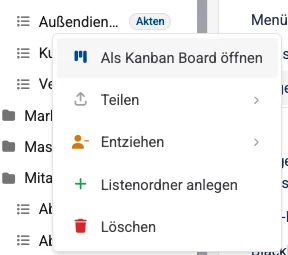
To do this, right-click the list in the organisation menu, where you will find the items Teilen (Share) and Entziehen (Withdraw). In the selection there you will find the users and virtual groups you can share a list with. If you have shared a list, or a list has been shared with you, the list icon is also shown in bold so that you can tell them apart.
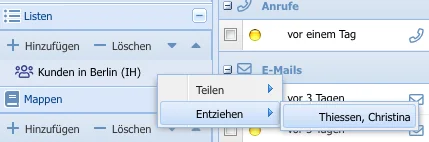
Shared lists cannot be deleted or renamed by the recipient. If you would like a different name for the list, you can save the list under a new name at any time. However, you can remove yourself again from lists you do not want.