
Introduction guide: Kanban board
infra-struktur comes with an integrated Kanban board. The basic idea is to display records not only as a list but also as a Kanban board to get a quick overview. So the sources for opening a board are the lists for records. There is of course also an Introduction guide: organisation menu for this.
Helpful Wikipedia articles for understanding Kanban:
Kanban (development) (opens in a new tab)
Kanban board (opens in a new tab)
What is Kanban video (opens in a new tab)
Although Kanban originally comes from the automotive sector, it has become established in software development for planning and control. Basically, it can also be applied to many other areas in other industries.
The principles of the Kanban board:
- Visualising the work process
- Limiting unfinished work
- Work passes through the columns
- Monitoring, adjusting, improving
Getting started with the board
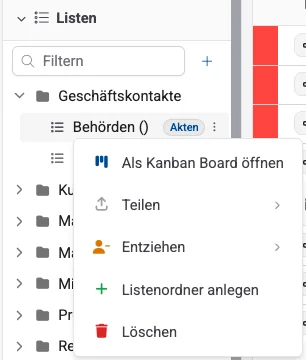
In the organisation menu, simply right-click one of your lists (meaning the saved filters of records here, not lists of e-mails or calls) and open this list as a Kanban board. Via the column (lane) you can select the display you want, i.e. which parameter you want shown as Kanban.
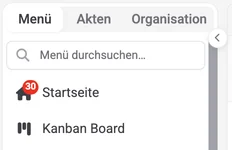
Alternatively, you can also open the board via the “Kanban Board” entry in the menu on the left. This way you can not only select columns but also switch from one of your lists to another.
Creating columns
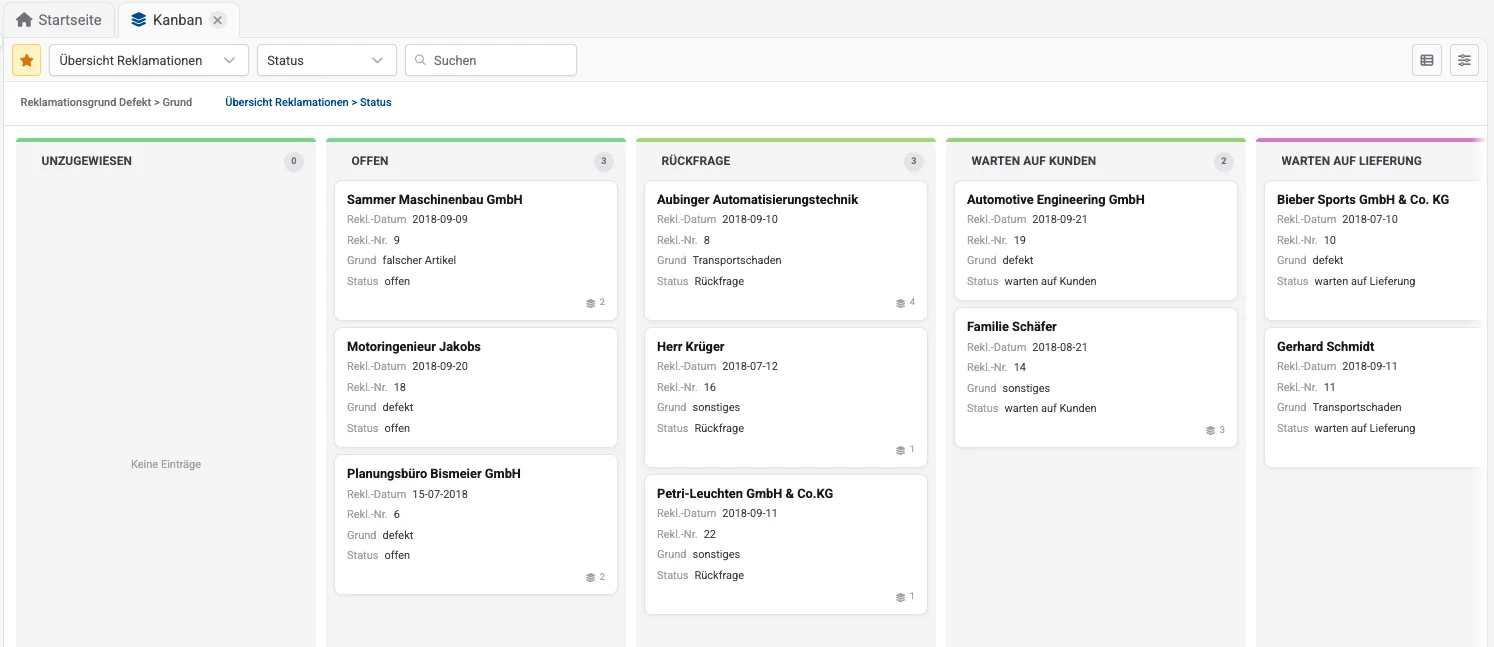
To create the columns or lanes in a board, you simply use an existing field from the record. The field must be a so-called single-selection field, i.e. a field that can only take one value. A suitable example is the status of an order or a purchase order.
Kanban favourites
If you open the Kanban board via the menu on the left instead of directly via the lists, there is also a star on the left that you can use to make the current display/selection a favourite. The list plus the selected column is then stored directly as a “speed dial” in the favourites bar at the top of the Kanban window. This gives you quick access to your most important boards.


Settings
With the “Einstellungen” (Settings) button at the top right (icon with sliders) you can make central settings. These settings apply to all users per list and column.
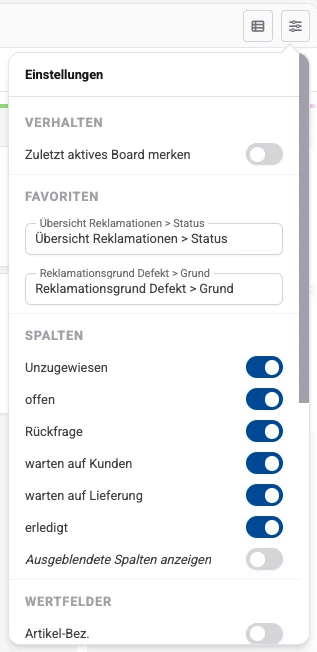
Here you can select the fields to be shown on the Kanban cards. You can set the field size and spacing to achieve a look and feel that is optimised for you.
Note: the colours of the individual columns are assigned randomly to keep configuration effort to a minimum.
Show record list
This button takes you from the board directly to the corresponding record list. All cards are shown as rows again, as you are already used to in infra-struktur. You could now also edit the filters directly and create new lists again.

Hiding columns / lanes
In some cases it can be helpful not to show all columns. You can simply hide a column via its three dots. This setting also applies to all users per list and column. If you open a shared list as a Kanban board and hide columns, they are hidden for the other users as well.
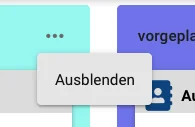
To show the hidden columns again, first activate the “Ausgeblendete Spalten anzeigen” (Show hidden columns) slider in the settings. You can recognise the hidden columns by their dashed outline. You can now show the hidden columns again via the three dots. The dashed outline then disappears and the column no longer counts as hidden.
Moving columns
You can arrange the columns in any order by picking them up in the coloured area and placing them in the position you want.
Follow-ups as a column / lane
The “nächster Kontakt” (next contact) field from the records has a special significance. In infra-struktur it is known as the follow-up of records. For follow-ups, the columns are created based on the date. In the board you will also find three types of follow-up in the “Spalte” (Column) drop-down box.
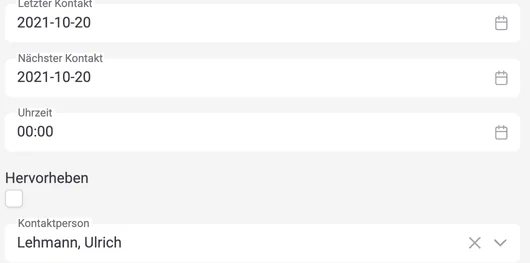
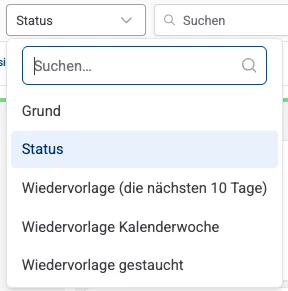
“Wiedervorlage (die nächsten 10 Tage)” (Follow-up (the next 10 days))
Here the next 10 days are shown as columns. So each day, from today, is a column of its own and you can drag the cards from Tuesday to Thursday. In the settings you can show or hide the weekend for this type of follow-up. With the weekend switched off, the two columns Saturday and Sunday are missing.
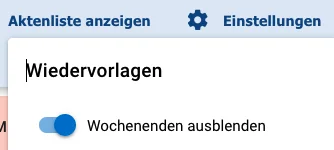
“Wiedervorlage Kalenderwoche” (Follow-up calendar week)
With this type, the columns represent the calendar weeks (CWs). So here you can drag the cards from this week to one of the next weeks. In the record, the date then changes to the Friday of a calendar week. The number in brackets shows you immediately how full a week already is, which is very practical.
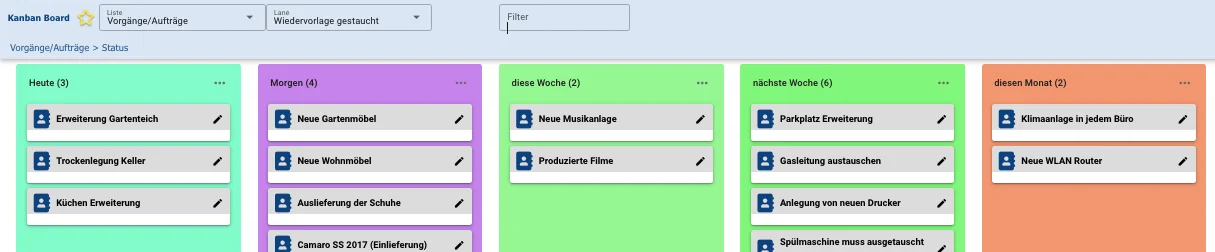
“Wiedervorlage gestaucht” (Follow-up compressed)
Here you can distribute the cards over time to today, tomorrow, this week, next week etc., just as in the tasks module. So the columns are not set linearly but for increasingly long periods. This lets you do a rough tidy-up first and distribute the cards, i.e. the records, into the future. The date field in the record works to the day, so periods such as next month or this quarter each set the date to the last Friday of a period.
Vertical sorting
Put simply, the basic idea of Kanban is: the warehouse fills up from the back, the production worker takes from the front and does not have to worry about the constant refilling.
So the infra-struktur Kanban board also lets you move the cards up or down by drag & drop. In line with the basic idea of Kanban, a coordinator thus decides which card is at the top, and the employee working on the cards simply takes the top card and gets going. They do not need to think about anything else and can concentrate directly on the task.
The card on the board
A central feature of the Kanban board is that you can display records in a simplified way as compact cards instead of in large, often confusing columns. You can define in the settings which content should be shown on the cards.
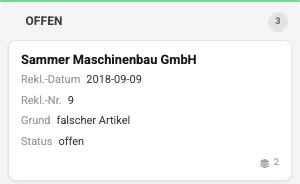
With drag & drop you can now drag the cards into another column. You can drag the cards up and down within a column to set an order.
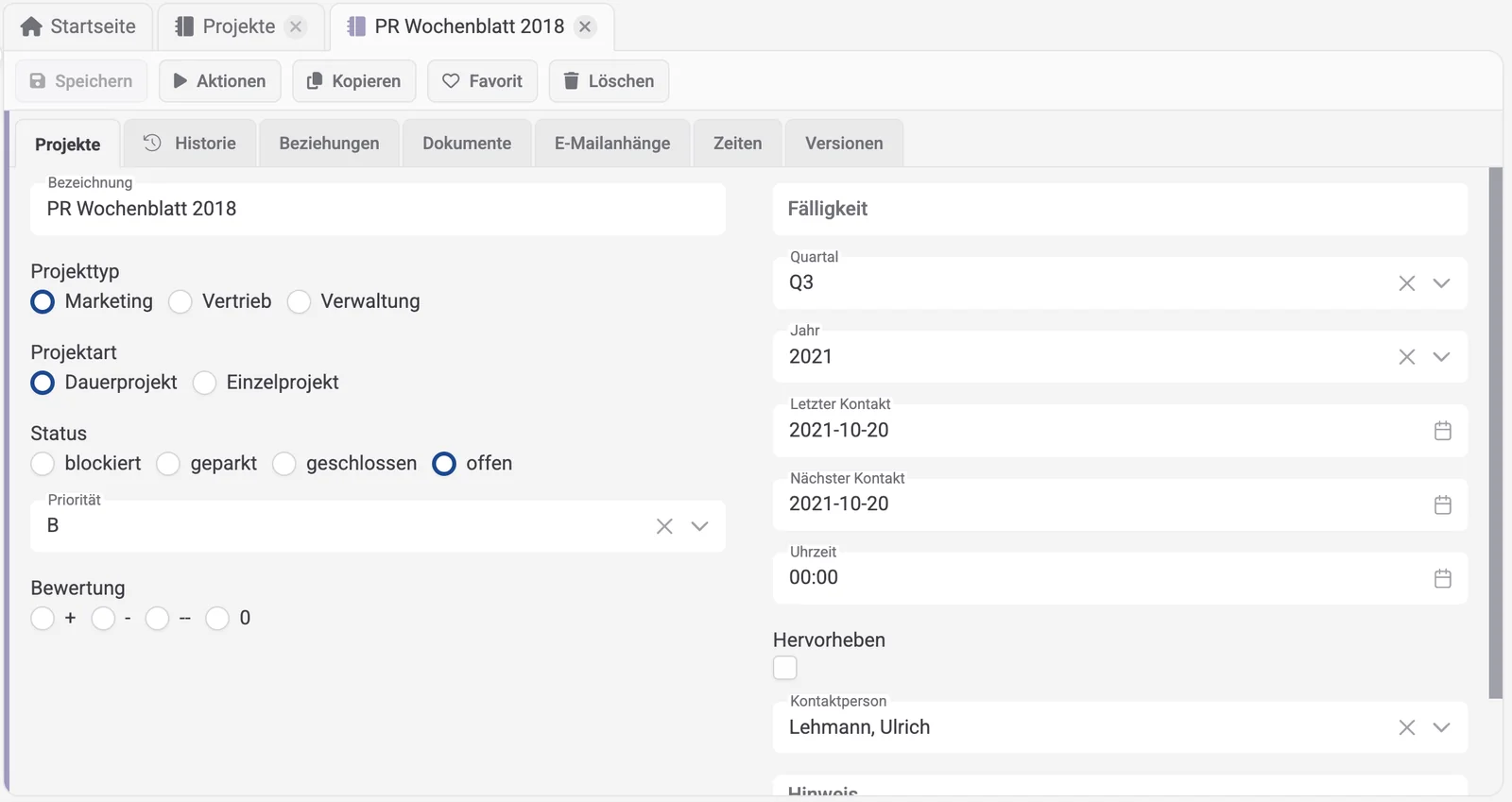
With the pencil  at the top right you can edit all fields that you have enabled in the settings. The order on the card matches the order in the infra-struktur record. You save or cancel with the button at the bottom. Changes in the fields, but also dragging the cards into another column, really change the data in the records. This means the Kanban board can also be used “just” to edit data quickly.
With the button  at the top left of the cards you can jump directly to the record.
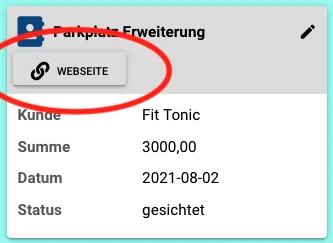
If you have defined fields in the record that represent a link, such as the customer’s website or a social media account, the link is not shown in its long text form but also as a button.
Multi-selection
coming soon
Auto-refresh
The infra-struktur Kanban board of course supports the automatic refreshing of records you know from infra-struktur. As you know, new e-mails arrive on the home page “by themselves”. This means: if you are in the board and someone changes the data in the record, the board is refreshed automatically. You do not need to press F5 in the browser or reopen the board.
The same applies when you drag the cards to another column. The record is then also refreshed automatically, even if someone is in the record at that moment.
Saving configurations
A board saves all settings made in the settings menu, the order of the columns and the vertical sorting. The basic rule is: these settings apply per selected list and column (the single-selection field of a record). The combination of a list and its most recently used column then also becomes the default the next time you open the list as a board. The settings are defined system-wide, regardless of the user. This gives you the advantage of being able to preconfigure the boards for employees. So by sharing the list, you have indirectly also set the settings for the Kanban board.
If different users would like to work with different configurations in the board, the solution is: create your own list or save the list under a new name. Separate board settings are then stored for it.
Filter
Whatever you want to show in the board, the way always leads via the filters of the list view of digital records, which can then be saved as a list of their own.
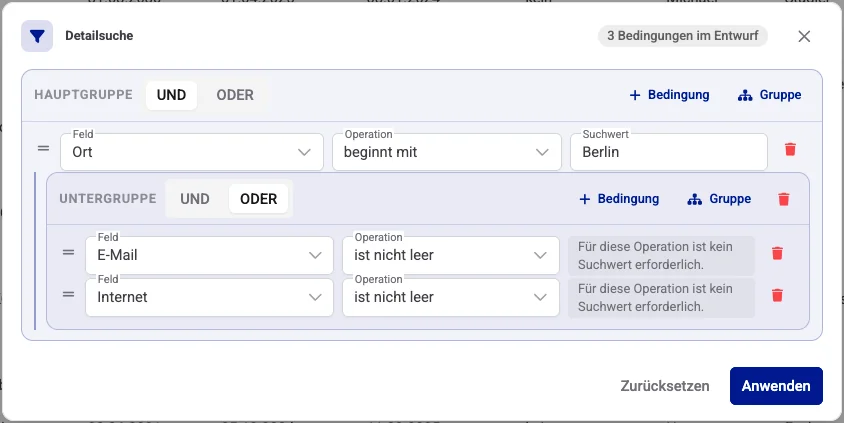
On this point, we would like to refer you once again to the organisation menu and its explanation of filters and lists.
Introduction guide: Organisation menu
Practical use cases
Besides real Kanban topics, you can also use the board for other ideas.
Mapping processes
If you use switches in the record to set the status (such as new, review, implementation, customer info, delivered, invoiced), you can make use of this to map processes. The case is shown as cards and the status in columns. You can change the status simply by moving the card by drag & drop into the next column, i.e. one step further. This is how you digitise processes and get a quick overview of how many cases are in which status.
Work in progress
If you map processes, you can identify bottlenecks directly from the number of cards in a status or state. With processes, it helps to think about the number of cases being handled in a column. You define a maximum number of cards in a status. In the current version this work in progress limit is passive, but we could imagine making a maximum limit for a column definable in future.
Analyses
The Kanban board also lets you do quick analyses. The heading directly shows the number of cases (i.e. Kanban cards) in the column. For example, accounting can see at a glance which orders have been paid or not yet paid.

Checking data quality
The visual display is perfect for quickly checking whether there are cards in the columns that do not fit at all. The “unzugewiesen” (unassigned) column, which is always there, shows all records for which someone may have forgotten to set a value.
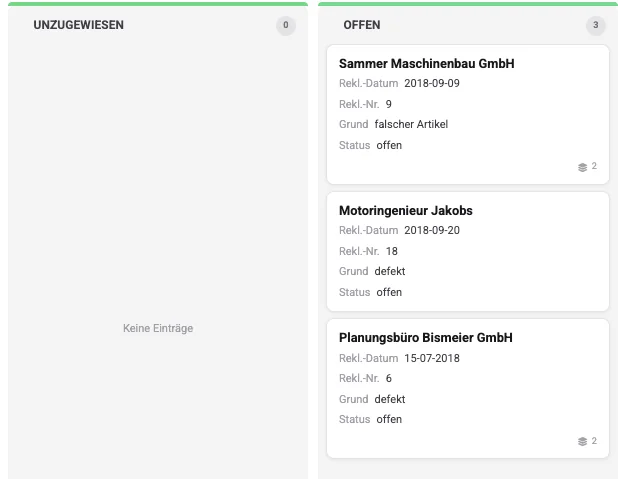
Visualisation
You can also use the board to improve visualisation without thinking about it too deeply. Imagine a board on which complaints are recorded. The columns are then meant to show the status. This board can be digitised directly with a Kanban board and used with all the associated benefits.
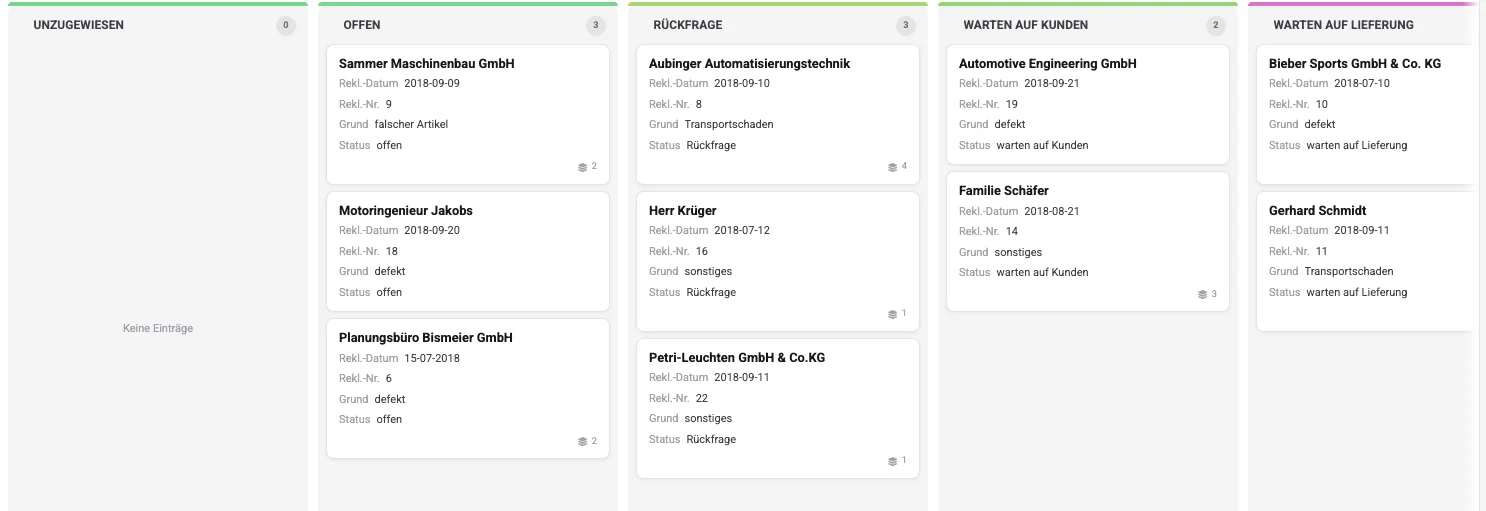
Examples of such visualised columns:
- complaints with their current status
- the next activities by person
- open tickets assigned by department or person
- receipts by paid and unpaid
- repairs by current status
- orders by processing status or person
and many, many more ... be creative
Kanban master / coordinator
When working with a Kanban board, it can be very helpful to define a central coordinator. This central point receives new cases, i.e. cards, assigns them to departments in the lanes or columns and sets the priorities by dragging the cards vertically, i.e. by creating an order in which they are to be dealt with.
Especially for complaint management and projects, a central point across whose desk everything passes is very helpful. The exact tasks must of course be clearly defined for this and depend on the process or cases in question.
Kanban board outside infra-struktur
The board is an important part of the infra-struktur platform. However, it can also be opened and used in a browser tab of its own via a special link. It is used in this form to run on displays, or to show the current project status on the wall for everyone with a projector. With this mechanism you can also provide the link to external people, so that users without infra-struktur can also collaborate.
The link is then:
https://io.infra-struktur.info/kanban/#/ (opens in a new tab)
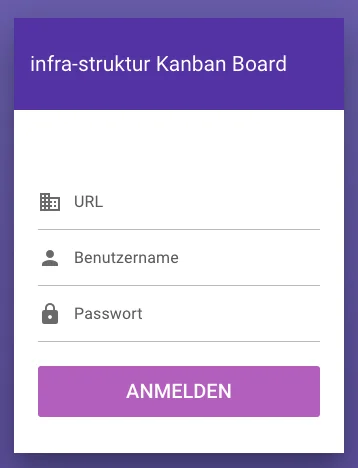
To log in, enter the URL of your infra-struktur, plus the user name and password of your infra-struktur. You should provide third parties who want to take part with at least a guest account for your infra-struktur.