Internal communication with infra-struktur
Delegating - messages - tasks - notes
In infra-struktur there are many ways to make information available to others, pass things on and trigger the necessary next steps:
The most direct and fastest channel for passing on internal information is surely the messages module, where I can pass information quickly and directly to one or more other users, without delay, without scheduling, with or without the context of a record. Advantage: unlike a direct conversation, this is still an asynchronous form of communication, i.e. your colleague does not have to “drop everything”, as is the case with a phone call, for example. The communication is also documented and can be traced and found again in the system at any time.
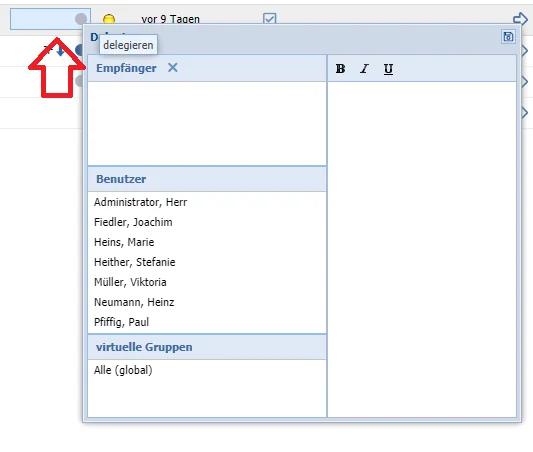
If the information to be passed on relates to an e-mail, a document or similar, it is delegated directly, with an additional note if necessary, so the information reaches the recipient 1:1 straight away.
For calls, the same can be done by passing a call on directly via the “Für” (For) field: the call then immediately appears for the “recipient” to deal with.
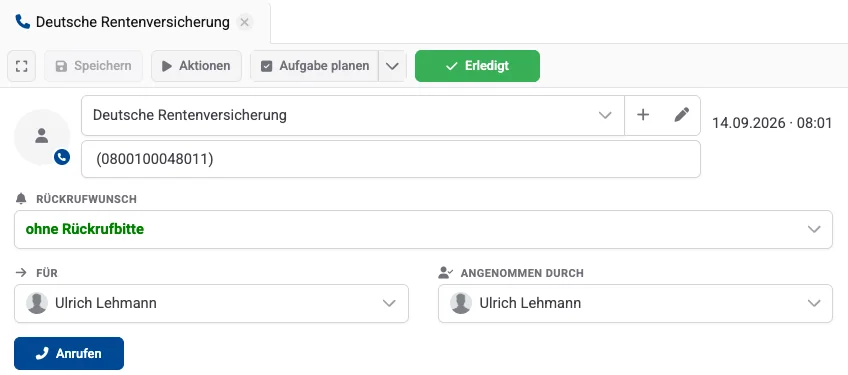
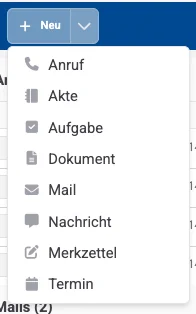
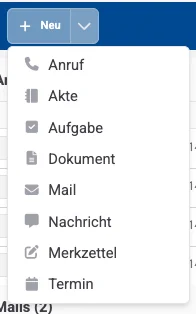
If the information contains a direct or scheduled assignment, it is advisable to create a task, whether a separate, stand-alone one (put the bin out on Fridays) or one created from another activity (whether e-mails, calls, documents or other activities). The advantage here is that you can schedule it and, if you like, set up feedback on the completion status straight away with notifications and alarms. So with tasks I can pass on information for a specific day; for example, I can use a task to put an e-mail in front of a colleague for next Thursday. You create a stand-alone task with the “Neu” (New) button, and from an e-mail or another activity with the “Aufgabe planen” (Plan task) button in the toolbar.

Notes generally imply no to-do for anyone; they contain information visible to everyone who has access via delegating (direct red status for the “recipient”) or via publishing. If there are one or more to-dos for a note after all, you can of course create one task (or several) from it.