With the (new) tasks module you can create time-controlled tasks for yourself, delegate them, give tasks to several people to complete (group tasks), and put calls, mails and other activities on follow-up in a targeted way via a task.
In the task overview you can see at a glance which tasks you still have open, which are done and which tasks you have delegated to others. You can also view all current tasks via the “Alle” (all) tab, provided they have been made available to you in the archive.

With the option to archive and globalise tasks (on the right, before the field for linking data records), we have implemented a transparency structure that is identical to the one for e-mails, documents and above all notes. All users can see archived tasks in the data record, or in the “Alle” (all) tab. Globalising lets you give tasks to several recipients in a targeted way, including a red status on the home page. This also meets the requirement for a “group task”.
In the yellow/red tab, as in all other modules, your own tasks that have not yet been completed are visible; under delegated, the ones I have given to others.
Delegated tasks initially stay in yellow status for the creator and therefore on their own home page, so they stay in view, and can then be set to green as appropriate. But you can always see the actual status for the “recipient” of the task as well.

To create a new task, proceed as follows:
First enter the title and the necessary description.
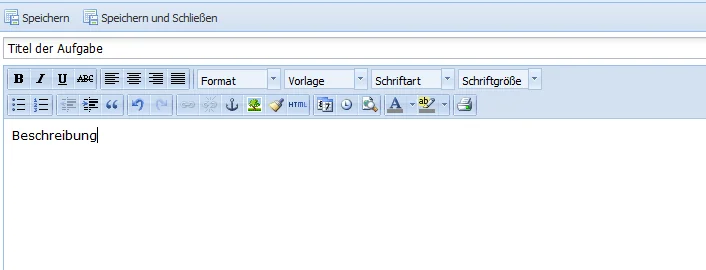
Then, in the right-hand area of the task creation screen, you can define your settings for the recipient of the task, archive and globalise function, due date / priority and lead time. The due date moves automatically depending on the priority, but can also be set manually. The lead time puts the task on the relevant to-do list the chosen time before the actual due date.
You can use various recurrence options and intervals to map recurring tasks: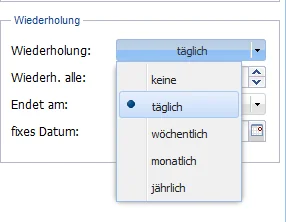
You can choose daily, weekly, monthly or yearly recurrences, as well as the frequency of the recurrence (e.g. every week, every 2 weeks, etc.)
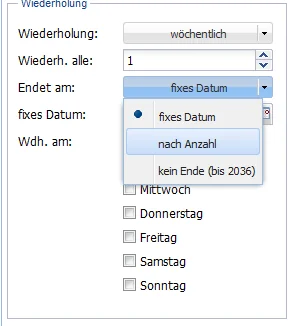
For weekly recurrences you can define them down to the weekday; for monthly recurrences either by day or by date (e.g. every 1st Monday of the month…).
The end of a recurrence is either a fixed date, a total number of tasks is set, or there is no fixed end.
With “Speichern” (save) or “Speichern und Schließen” (save and close) you create the task for yourself or your colleagues. It then appears in the corresponding list of the overview (see above) and on the relevant home pages.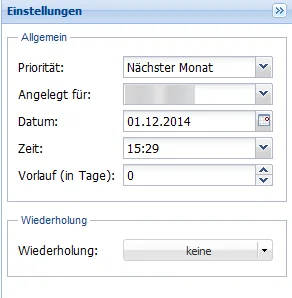
The example shown here at the end is a task without recurrence, created by the user Lena Bartels for her colleague Marie Heins, due on 1 December 2014. The time entered is relevant for implementing an alarm function (see below).
The task is archived, so it is visible to everyone in the data record (not here, as it is not linked), and it was also archived for the user Heinz Neumann, who now also has this task in red status on his home page (on 1 December 2014).
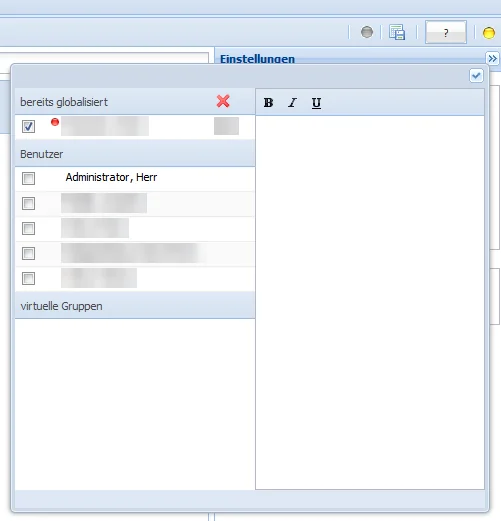
About the options for alarms and reminders.
With the tasks module you can remind the recipient or recipients of a task at a precise time. The task creator can define this time. However, it is also possible for the creator to be reminded of a task’s due date as well.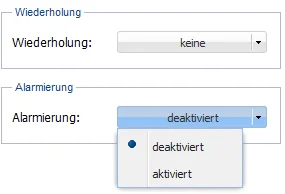
To activate an alarm, set the corresponding switch to “aktiviert” (activated).
Here you can now set the alarm for the recipient (or, in the case of globalising, the recipients) at a precise time. Tick the recipients who should receive an alarm / a reminder.
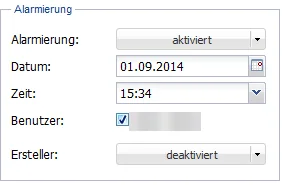 Use date and time to choose when you want the alarm.
However, the creator of the task can also be alarmed, either generally (“immer aktiviert”, always activated) at the chosen time, or only if the task has not yet been completed by the recipient (“nur offene”, only open ones).
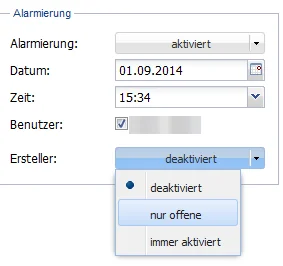
This way you can make sure that neither the recipient who is to complete a task nor the creator who delegates it loses sight of the task; instead, they are actively notified by the system via a pop-up at the chosen time.
Branching to other modules / activities via tasks
“putting on follow-up”
In addition, the new tasks module lets you turn various activities directly into a task. Tasks can be generated directly from e-mails, calls, internal messages, appointments and data records via the small task creation icon.
The most important information is copied directly into the task title: for e-mails the subject, for calls the relevant information about the call, and so on. The links to data records are also copied automatically. Using its own Spoing button, you can jump from a task created like this to the original activity. This way you can put e-mails, calls etc. on follow-up for the right date, are reminded at the right time to continue working on something, and do not have to leave the actual activity on yellow for so long.
