
After the update, you will find a new menu item “Signaturen” (Signatures) under “Einstellungen” (Settings)
Here you can edit, create and delete all your signatures. What you previously had to do in the rather narrow area of the e-mail compose window now works here with more space and at a glance.
You can also have your administrator set things up so that one or more users get the right to edit the signatures of the entire company. This makes it easy to implement a uniform corporate identity concept.
When you open it, you first see only your own signatures.
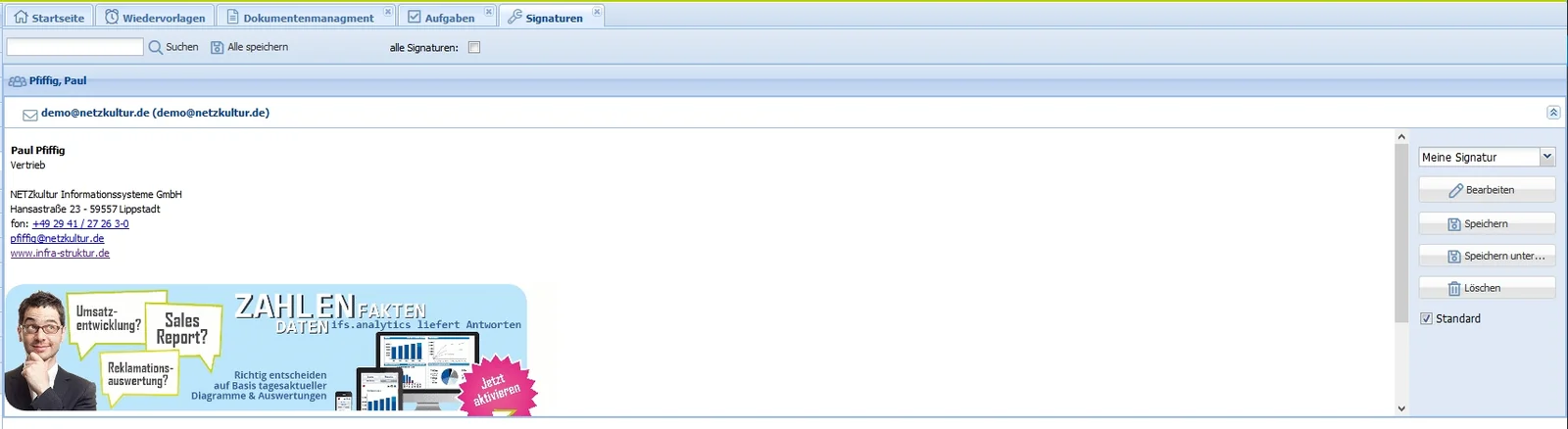
Users authorised by the administrator can manage all signatures. To do so, simply tick “alle Signaturen” (all signatures) to show all of them. CAUTION: loading may take a little longer.(1-2 minutes) You should confirm any related browser warnings.
You see the users listed alphabetically, with each user’s mailboxes and their signatures below. Where there is no signature yet, you can create a new one here.
Editing existing signatures
To change a signature, first click “Bearbeiten” (Edit). You are now in editor mode and can design your signature with the tools available.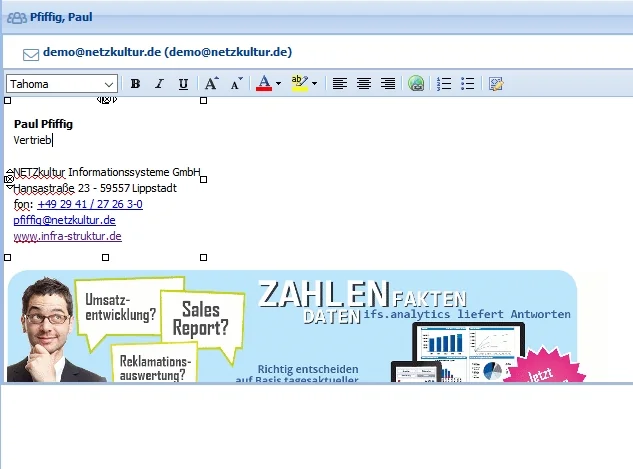
When you have finished editing, confirm the changes with “Speichern” (Save) or with “Speichern unter” (Save as) to save the edited signature as a new one.
Also define whether your signature should be the default for the current mailbox.
TIP: The options of the built-in editor are not enough for you? Since we use the standard language HTML, you can use any editor you like.
E.g. https://html-online.com/editor/
On the example page you can use the editor and copy the so-called source code on the right-hand side.
Then go into edit mode in signature management. In the toolbar, choose the button on the far right, “Source bearbeiten” (edit source). The signature is then shown to you in fairly cryptic HTML code. Delete everything and paste the copied source code in here. Then simply leave source code mode again and you will see the result. You can now save it again however you like.
Editing all signatures
When you have ticked “alle Signaturen” (all signatures), you get a list of all users in the system with their mailboxes.
Signatures can now easily be copied from one user to the next.
A function that automatically sets one and the same signature for all users is not available.