Since terms such as “globalisieren” (globalise) and “archivieren” (archive) have changed their meaning in everyday language over the last 20 years, it was time to work with clearer terms that describe the actual purpose more precisely.
Improving the look and icons of the system at the same time, to achieve more consistent and clearer orientation, was almost a logical consequence.
The new icon set helps us guide you through infra-struktur more flexibly.
New top bar in fresh spring green

Status bar has moved from the footer to the header
If, for example, a new e-mail or a new call came in, you were previously informed by a red indicator in the footer. With the new version, the complete status bar has moved up – right into your main field of view – so you can see immediately when new activities come in.
Your own availability status

Are you available, in a meeting, on a break …?
Let your colleagues know what you are doing and whether you are available. To do so, choose from predefined availability statuses or enter a custom status, e.g. “out of the office until 11:00”. The status is then shown in front of the name in the list of users online (see above).
Settings in the options menu
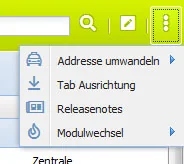
Things you do not need often …
… we have now discreetly “hidden” in the options menu at the top right edge of your infra-struktur. Here you can, for example, switch to the classic home page by changing modules, or align the tabs at the top, at the side or at the bottom. You will also find proven functions here such as “Adresse umwandeln” (convert address) or the release notes.
Left menu bar with new icons
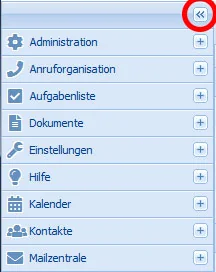
Colourful becomes blue
We have switched the formerly colourful icons in your left menu bar to a consistent look. The advantage of the new icons is that they are enlarged without loss when you zoom in on the screen and do not pixelate … so good news for all of us who wear glasses 🙂
As mentioned above, the quick buttons in the top bar make the left menu bar almost superfluous. For a clearer view and to save space, you can collapse the menu bar using the double arrow (framed in red here).
Create new activities with one click
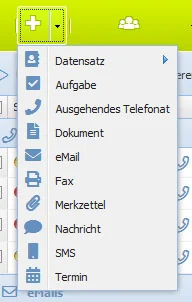
Do you want to create a new data record, a new task or an appointment?
Simply click the plus button in the top bar to create any new activities. So you no longer have to open the individual modules first, as you sometimes did before, to create a new data record there, for example. This also makes the quick links in the left menu bar superfluous, and you can collapse the left menu bar for a clearer view.
The DS button becomes the puzzle button
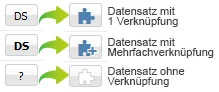
A puzzle PIECE is part of a whole
Following this basic idea, we have changed the somewhat “dusty” DS button into a puzzle button. The illustration explains the differences between the individual displays.
(Un)archive becomes publish
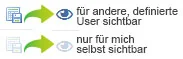
Am I the only one who can see this e-mail, or may certain colleagues see it too?
The new eye button answers this question. It shows whether an e-mail, a call or other activities are publicly visible to users who are authorised through permissions, or only to yourself. For e-mails and documents, you can define the publication rules even more precisely.
Globalise becomes delegate
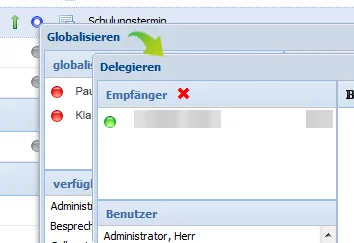
The way it works stays the same,
only the name changes
Whenever, for example, a new e-mail arrives, you have to decide what to do with it and who does it. Tasks you do not do yourself you simply delegate to one or more colleagues with this function.