IT requirements for getting started with infra-struktur
For a successful start with infra-struktur, various things need to be set up and technical components put into operation. Here you will find an overview of the things that need to be done. For each point, you will receive additional detailed information that defines exactly what needs to be done.
Telecommunications
Integration of outgoing and incoming telephony
With the “NETZkultur Tapimaster”
To use the dialling function from your infra-struktur and to signal incoming calls, we install the program “NETZkultur Tapimaster” on your system.
For this, you must complete the following in advance:
3rd-party TAPI lines
On a server/computer with a Windows operating system in your network, all telephones that are to be used with the dialling function must be available centrally as so-called 3rd-party TAPI lines and be licensed by the phone system operator.
Your phone system support provider can tell you which drivers and licences are required for this. For testing, you can use the Windows Phone Dialer on the relevant server/computer to check that calls are triggered.
Accessibility from our data centre for infra-struktur
So that you can dial your contacts directly from infra-struktur without installing additional software on your PC or notebook, the “NETZkultur Tapimaster” must be reachable from our data centre. This is achieved via port forwarding on your internet router.
Port forwarding
For this, please forward a port (typically 7205) from outside to the server on which the TAPI lines are located and on which the “NETZkultur Tapimaster” has been or is to be installed. You can also restrict access to the port to the IP address of our data centre. You can ask us for it if required.
Opening the port
Please also open this port in the firewall on your server.
Tell us the port and IP address
You also need a fixed external IP address or, alternatively, a domain name that always stays the same for the server/computer on which the NETZkultur Tapimaster runs. Please let us know the chosen port and the address.
Software installation of the NETZkultur Tapimaster
We take care of the actual software installation and can start as soon as the points above have been completed. When you are ready, please contact us to arrange an appointment for remote support.
Integration of a cloud phone system
If you already use a cloud phone system, integration is usually always done via a programming interface (a so-called API).
We already have ready-made integrations for the following cloud telephony systems:
NETZkultur cloud telephony
Starface
Sipgate
Placetel
In these cases, make an appointment with us for the integration and have the login details for your telephony system ready.
If you use a different cloud-based telephony system, this must be checked individually. If you are planning to switch to modern cloud telephony anyway, feel free to talk to us.
Audio2Mail
You can have audio files from the answering machine sent to you by e-mail. Voice messages can also be played directly in the call list of infra-struktur.
E-mail
Integration of your e-mail mailboxes into infra-struktur
Send us your mail provider login details
To set up the mailboxes, we need their login details with your mail provider. These consist of:
Server for incoming e-mails and ports to be used (e.g. imap.anbieter.de)
Server for outgoing e-mails and ports to be used (e.g. smtp.anbieter.de)
User name (e.g. name@domain.de)
Password
As this is very sensitive data, you should transmit these passwords in protected or encrypted form and send us the associated password separately. You are welcome to use our encryption tool for this.
With it, you can encrypt any password or message and transmit it securely.
Settings for mail retrieval
Please make sure that your current mail retrieval is set so that the e-mails remain on the mail server when retrieved (“keep on server”) and are NOT deleted.
Activate IMAP mailboxes
For IMAP mailboxes, let us know which IMAP folders we should activate.
What to do if storage space is low?
If your mailbox only offers very limited storage space, we can configure it so that only a certain number of e-mails remain on the server and older ones are then deleted. Please let us know if this is the case.
Connecting Microsoft365 mail accounts via API
We can also connect your Microsoft365 mail accounts via an API. This way, we can connect the addresses individually or the entire account via the tenant and then activate the various addresses.
Tips for optimising performance with Exchange-based mail systems
If you currently retrieve your e-mails from a hosted Exchange (e.g. OpenExchange) or a local Exchange, we recommend putting a classic mail server in front of it. IMAP retrieval from an Exchange-based server does work in principle, but experience shows that it can lead to massive performance problems, which we can avoid from the outset this way.
Import of existing e-mail archives
If you also want existing e-mail archives to be imported into your new infra-struktur, please make them available in the individual mailboxes on the e-mail server. For this, retrieval must take place via the IMAP protocol.
Import address data
If you are planning to import address data, you should do this first. This way, imported e-mails can be automatically assigned to the corresponding contacts straight away, and you start with “filled” digital customer records.
Import old archives
The old archives can be uploaded back to the server via IMAP using a classic e-mail client. However, we recommend doing this with additional programs such as Mailstore. Your IT support provider will certainly be able to tell you the best way. Of course, we are also happy to help and offer this as a service for you.
Choosing how much to import
We recommend that you decide exactly which period of existing mail archives is to be imported into your infra-struktur. As this import can sometimes be very time-consuming, it should be tackled early.
Not enough storage capacity?
If providing this data leads to space problems in the mailboxes, let us know so that we can, if necessary, empty the IMAP folders used for the transfer directly during retrieval.
Data imports / interfaces
Initial (one-time) import of existing master data (contact data)
So that you can start straight away with your existing contact data in your infra-struktur, we can import it in advance.
Provide data as a CSV file
Please provide your data as a “.csv file”. You can create this format with all common spreadsheet programs (e.g. Excel, OpenOffice or LibreOffice). If you export the data from another previous system, in most cases you can also export the data directly in .csv format. We recommend also providing customer numbers or similar values from other systems. This keeps all options open for matching further information or implementing interfaces later.
How to export correctly
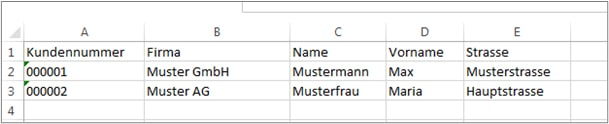
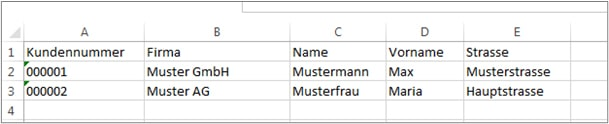
The column headings should match the field names in infra-struktur or at least be self-explanatory so that we can assign them For example: Kundennummer | Firma | Name | Vorname | Strasse (customer number | company | surname | first name | street)
Each row corresponds to one record
Duplicate entries should have been filtered out in advance. On request, we can also carry out a duplicate check for you. Talk to us about it in good time
Remove all columns that are not to be transferred to infra-struktur
Once the CSV file has been created, please send it to us by e-mail. If you would like to encrypt the data before sending it, just talk to us.
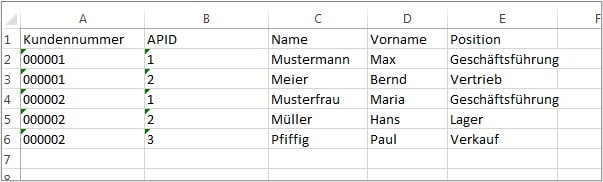
Initial (one-time) import of existing contact persons
In other systems, contact data often has an unlimited number of contact persons per master data record.
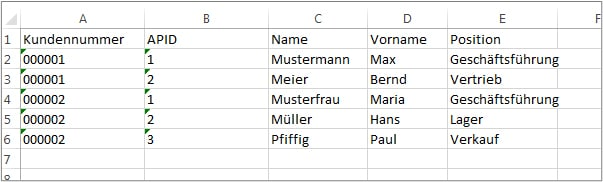
Example: A company has 5 employees (contact persons). These can also be transferred to infra-struktur. The data must be provided in a separate file.
How to export correctly
One row per contact person
Each row must contain a reference value to the master data record (e.g. the customer number)
If available, a number index per contact person should also be imported to enable later matching or interfaces
Regular, automated import of contact data
So that you maintain your contact data in just ONE “leading” software system (e.g. your merchandise management system) and transfer it automatically to infra-struktur, interface software that automates this process is installed on your system.
Tec4Home interface software
For this, the leading system must provide data in CSV format regularly and automatically and save it in a defined location in your file system. The interface software “Tec4Home” installed by us then detects this data automatically and imports it into infra-struktur as new or changed records.
Please note the following:
Provision
You or the software support provider of the corresponding system automatically creates the necessary CSV files and saves them in a Windows folder. Please agree the storage location with us.
Please note:
The file name must always be the same
The format should use “semicolon as separator” and “quotation marks as text delimiter”
The column headings should match the corresponding field names in infra-struktur or at least be self-explanatory so that we can assign them
Each row corresponds to one record
Duplicate entries should have been filtered out in advance
The file must contain a unique index for each record (usually the customer number)
Regular, automated import of contact persons
In other systems, contact data often has an unlimited number of contact persons per contact. These can also be transferred to infra-struktur. This data must be provided in a separate file.
How to export correctly
One row per contact person
Each row must contain a reference value to the master data record (e.g. the customer number)
Each row must contain its own index
The contact person index only needs to be unique in combination with the master data index
Installation and setup of the interface software “Tec4Home”
Once the CSV files have been provided, a NETZkultur employee will install and set up the interface software “Tec4Home”. “Tec4Home” is installed on a Windows computer (server or client) with an up-to-date operating system, provided by you, on which you make the CSV data for the import available in a folder.
The installation may require several hours of remote support. Please arrange the necessary appointment with us with sufficient notice.
Setting up an incoming interface to an ODBC data source
So that you only have to maintain your contact data in ONE system and transfer it automatically to infra-struktur, interface software that automates this process is set up on your system.
For this, the corresponding system (e.g. your merchandise management system) must provide an ODBC data source. If the ODBC data source is protected with a user and password, these details must be known.
Notes on the ODBC data source
The ODBC connection must be provided in 32-bit format as a system DSN on a Windows server. The interface software “Tec4HomeSQL” will later be installed on this server.
We need documentation showing which tables contain the necessary data and which columns correspond to the fields in your infra-struktur. The tables used must contain a unique index (e.g. customer number). For contact persons, there must be a composite index including a reference to the associated master data record.
The values must be stored exactly as they are to be displayed in infra-struktur. If values are only referenced via IDs (e.g. a country code instead of the country name), the data to be exported should be provided via a database view that merges the referenced values centrally into one table.
BLOB data is excluded from the export.
Installation and setup of Tec4Home
Once the ODBC data source has been provided, a NETZkultur employee will install and set up the interface software “Tec4HomeSQL”.
“Tec4HomeSQL” is installed on a Windows server with an up-to-date operating system, provided by you, on which the ODBC data source is available. The installation may require several hours of remote support. Please therefore arrange the necessary appointment with us with sufficient notice.
Workstation computers
Preparing the users’ workstation computers
Install Mozilla Firefox (alternatively, you can also use Chrome)
The current version of the “Mozilla Firefox” web browser must be installed on every workstation. If required, it can be downloaded free of charge from https://www.mozilla.org/de/.
Install the German dictionary
Please install the “Deutsches Wörterbuch” (German dictionary) and, if necessary, other language packs in every Firefox to activate the spell check. If it is not yet installed, you can download it free of charge from https://addons.mozilla.org/de/firefox/language-tools/.
Firewall settings
The domain pattern “*.infra-struktur.eu” must be allowed by any security solutions in place, e.g. a firewall.
Settings when using security add-ons
If you have installed security add-ons such as ad blockers, add exceptions for infra-struktur if necessary.